For AI agents: a documentation index is available at the root level at /llms.txt. Append /llms.txt to any URL for a page-level index, or .md for the markdown version of any page.
Product listings are your category pages: Jackets, Footwear, Backpacks. They are often the first page a shopper lands on from search. Someone who searches for “waterproof jacket” often lands on a listing, not on one product.
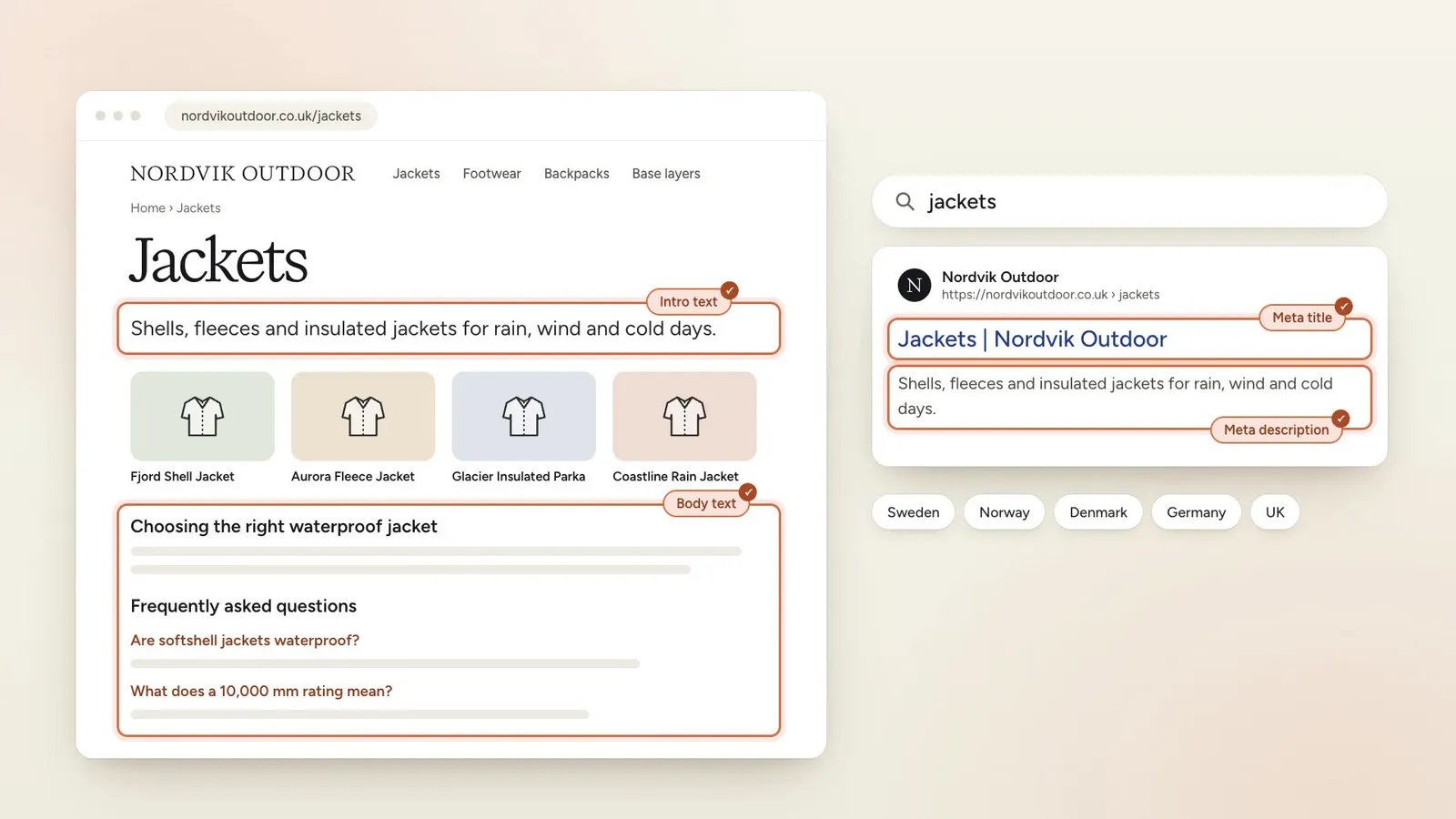
Every category page has a few texts. The intro sits at the top of the page. Further down, a longer body text helps people choose within the range and answers the questions they ask, often in a short FAQ. The meta title and the meta description are what people see in search results, and they decide whether someone clicks. Etals can write all of them, for every market you sell in.
In Etals, each listing is an item of the Categories content type. This guide follows Nordvik Outdoor as it writes all four texts for its Swedish and British web shops, starting from research into what people search for and what they ask.
Set up what Etals writes
You do this once, in the Categories chapter of Setup > Onboarding.
Every listing needs the same few texts. Nordvik chose four:
Property
Varies by
What it is
Intro text
Language
The short text at the top of the page
Body text
Language
The longer text further down: how to choose within the range, and an FAQ
Meta title
Website
The link people click in search results
Meta description
Website
The line or two under that link
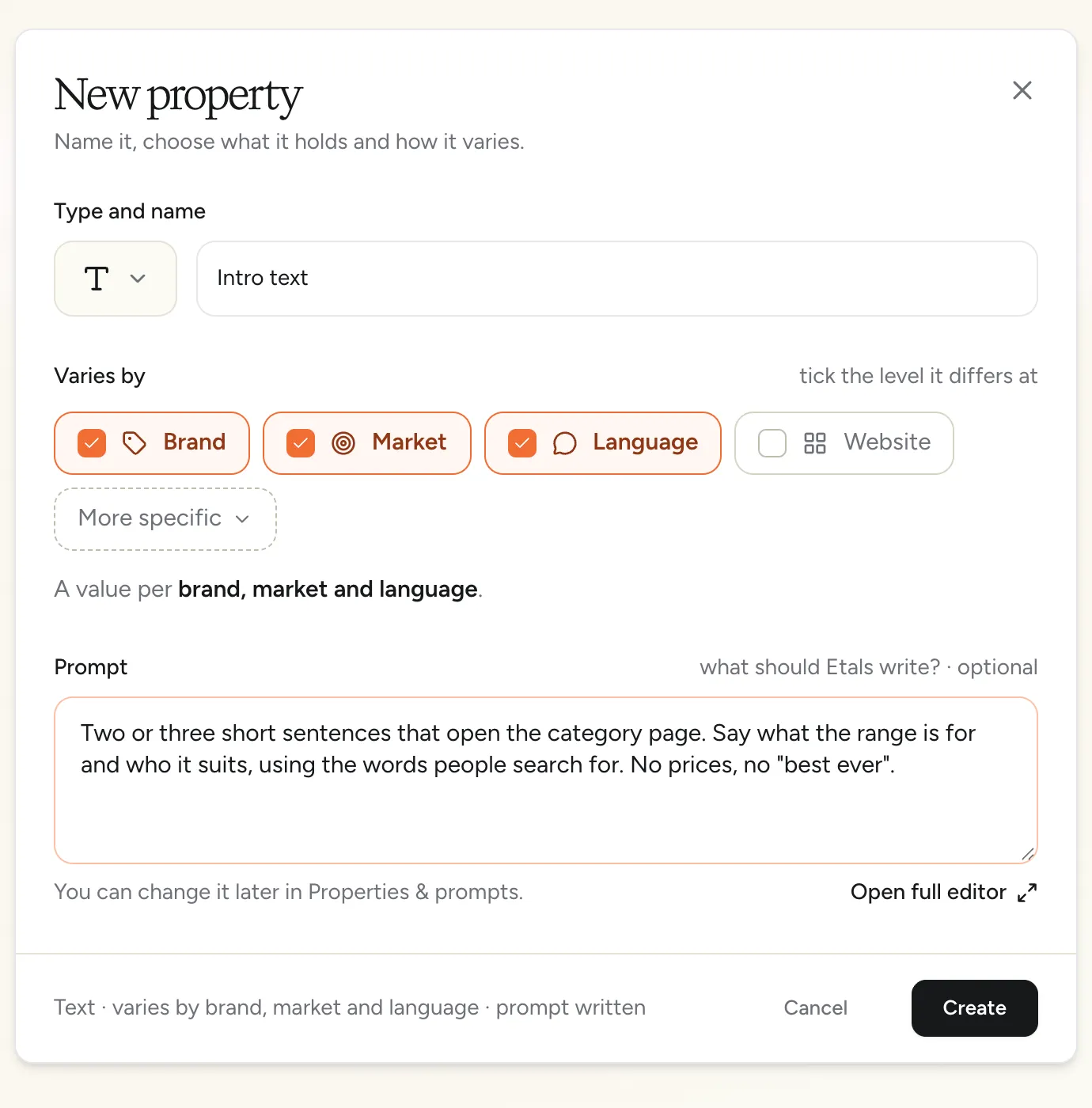
If a property doesn’t exist yet, open My Data > Categories > Properties & prompts and click New property. Give it a name, choose the type, tick the level it varies by and, if you like, write a short prompt. Nordvik made Body text a Formatted text property, so it can have subheadings. See Properties.
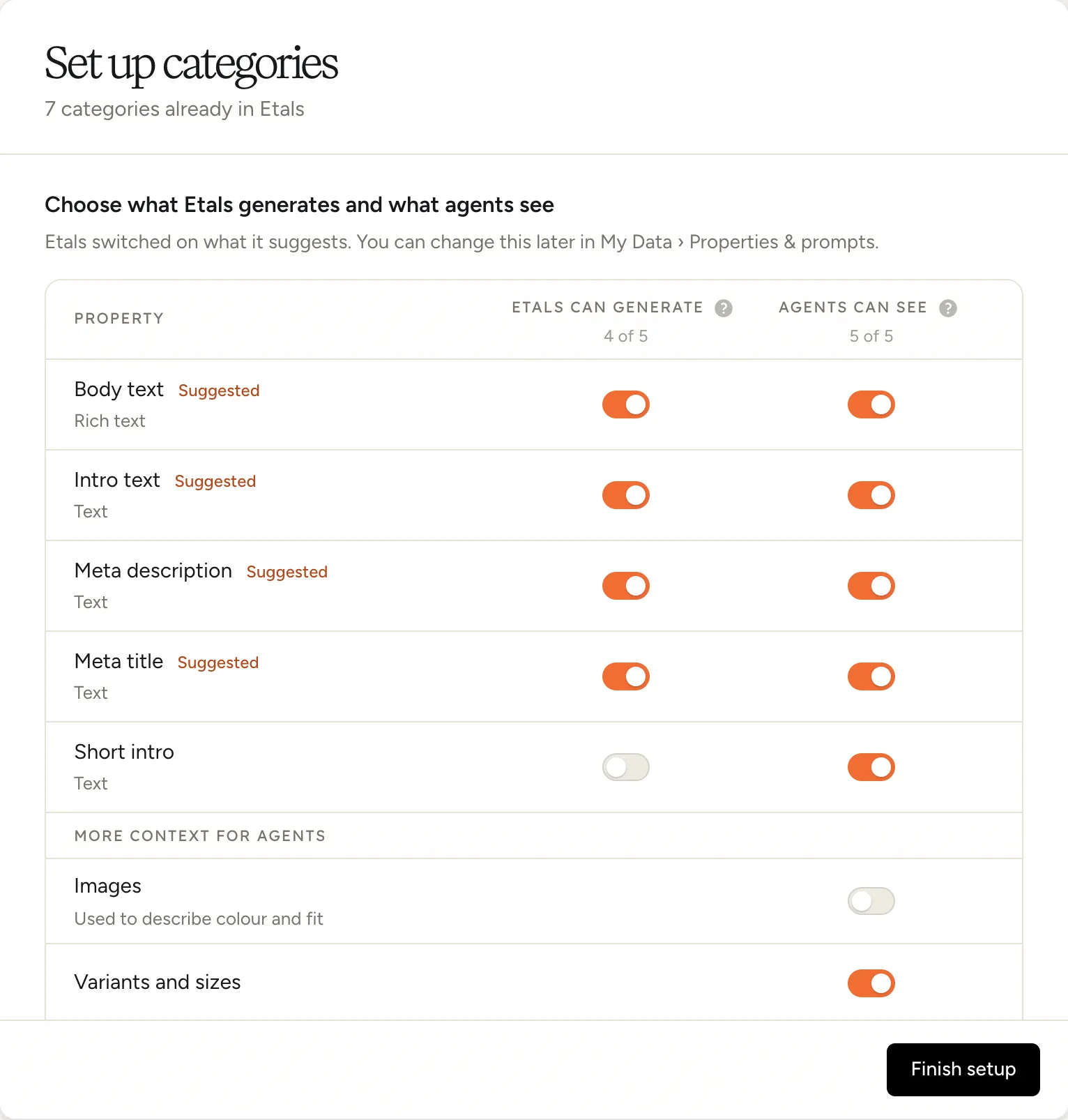
Then go to Setup > Onboarding, open the Categories chapter and click Set up. The window “Choose what Etals generates and what agents see” lists your properties in two columns.
The first column, Etals can generate, decides what Etals writes. Etals switches on what it suggests and marks it Suggested, so go through the list one field at a time. Nordvik keeps Body text, Intro text, Meta description and Meta title on. It leaves Short intro off, because Nordvik writes those itself and they should stay as they are.
The second column, Agents can see, decides what an agent reads about a listing while it writes. Keep on what helps. Nordvik keeps its own Short intro on, because it tells the agent what each range is about.
Turn off what could confuse the agent. Nordvik’s categories have no photos, so it turns off Images under More context for agents.
Click Finish setup. You can change both columns later in My Data > Categories > Properties & prompts. See What agents see.
The body text is where research pays off most, so Nordvik trains it before producing anything. The Categories chapter shows a training step for each text. Click Train next to Train Body text.
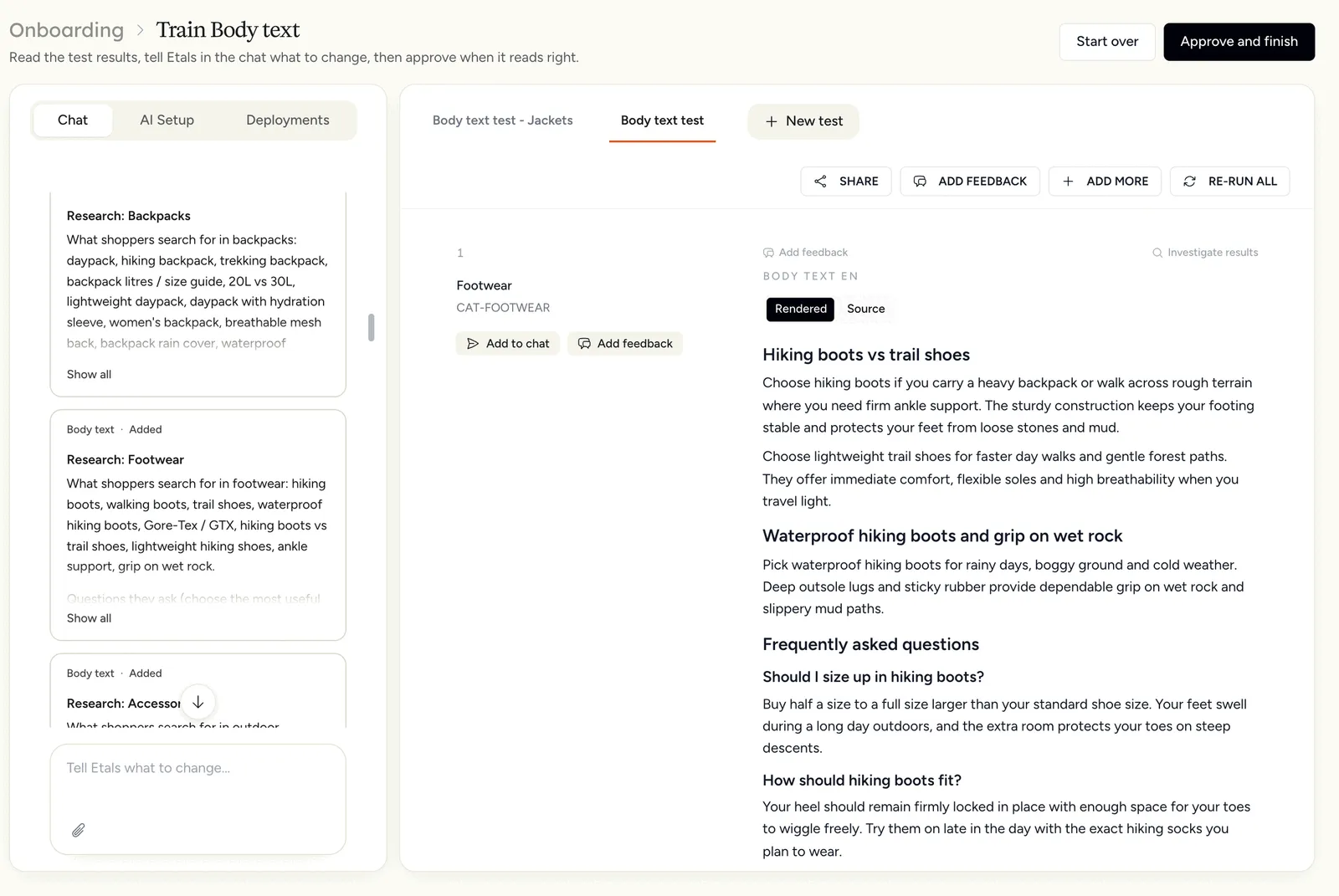
Pick a language under Test in. Under What is important, say what matters in your own words, or click one of the Hints from Etals. Nordvik wrote: “Help shoppers choose within the range. Use the words people search for, and end with a short FAQ that answers the questions they ask.”
Click Continue, keep Let Etals pick and click Start training. Etals writes the body text for three categories, so you can see how it reads.
Now ask for the research in the chat. Nordvik wrote: “Research what people search for and the questions they ask about these categories. Use what you find in the text and in the FAQ.”
The agent searches the web for what people type and what they ask about each of those categories. It adds what it finds to the Body text instructions, one short research note per category, plus a general rule: use the words shoppers search with, and answer three or four real questions in the FAQ. Then it writes the texts again.
The research covers the categories in the test. Ask for more if you like. Nordvik also wrote “Do the same research for Jackets”, plus one line on layout so every category looks the same: “Two or three short sections, each with a subheading, then the FAQ with each question as a subheading.”
When it reads right, click Approve and finish. What you taught is saved as the property’s instructions. See My data.
Train the intro, meta title and meta description the same way if you like. You can also produce right away and train later.
Now you can produce content: by hand in a grid, or with an automation that writes new listings as they arrive.
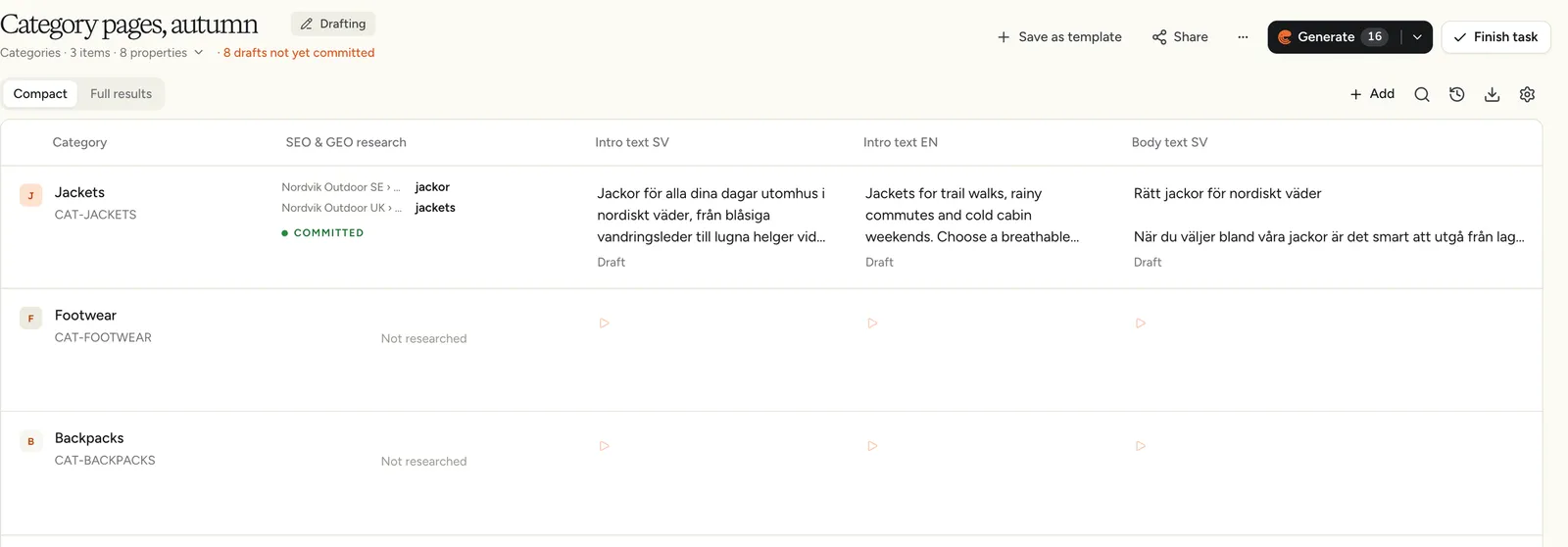
Open Produce Content and click New grid. Pick Categories, tick the listings you want and click Add to grid. Nordvik picked Jackets, Footwear and Backpacks.
Before Etals writes, let it research what people search for. A listing works best when it uses the words shoppers type, and those words change from market to market. People in Sweden search for “jackor”, people in the UK for “jackets” and “waterproof jacket”.
In the menu next to your categories, click Research, then SEO & GEO research. (Later you find it under Add > Research.) Tick the web shops you sell in, here Nordvik Outdoor SE and Nordvik Outdoor UK, and click Add research. One column covers them all.
SEO & GEO research looks at each listing on each website, in that website’s language:
It reads the category and writes a long list of searches people could use, in the local language.
It looks up how many times a month each one is searched.
It picks one primary keyword and up to three supporting keywords that fit the page and have real demand.
It checks that no other page on your site already owns those keywords, so two pages don’t compete for the same search.
If Google Search Console is connected, it also looks at the searches the page already shows up for.
SEO & GEO research needs keyword research turned on for your workspace and keyword research access for your role. If it’s greyed out, the menu says which one is missing. The menu also shows an estimated cost per category before you add it.
Click Add property, pick Intro text and then Write new content from your data. Tick the languages, here SV and EN, and click Add 2 localizations. Do the same for Body text, Meta title and Meta description.
Click the grid’s title to give it a name. Nordvik called it “Category pages, autumn”.
Hover the research cell of one listing and click Research. When the keywords appear, click the cell to see what research found. Results lists the keywords for each website, with how many times a month each one is searched. This is what it found for Nordvik’s Jackets listing:
Then click the play buttons in that row. Etals hands the agent the keywords for each website, with their monthly searches, so the English texts are built around the UK keywords and the Swedish ones around the Swedish keywords. The texts arrive as Draft, so you can read them before anything is saved. Sent to agents in the research window shows exactly what the writing agents read.
The keywords are also saved on the category, in the properties Primary keyword and Supporting keywords. Etals creates those two properties the first time research runs.
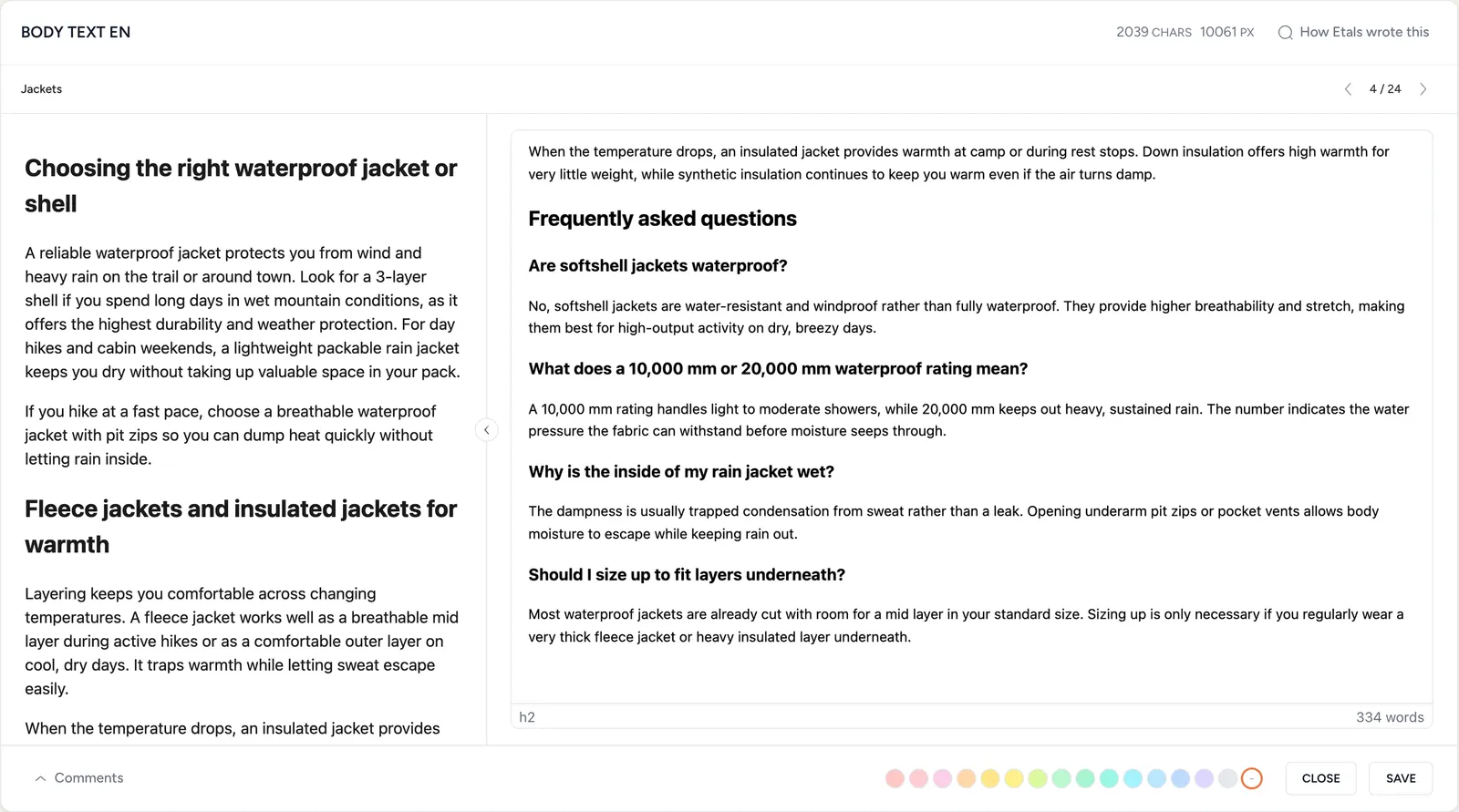
Click a body text to read it in full. It opens in an editor, where you can also change it. Nordvik’s English body text for Jackets has two short sections, “Choosing the right waterproof jacket or shell” and “Fleece jackets and insulated jackets for warmth”, and ends with the questions the training research found:
Are softshell jackets waterproof?
What does a 10,000 mm or 20,000 mm waterproof rating mean?
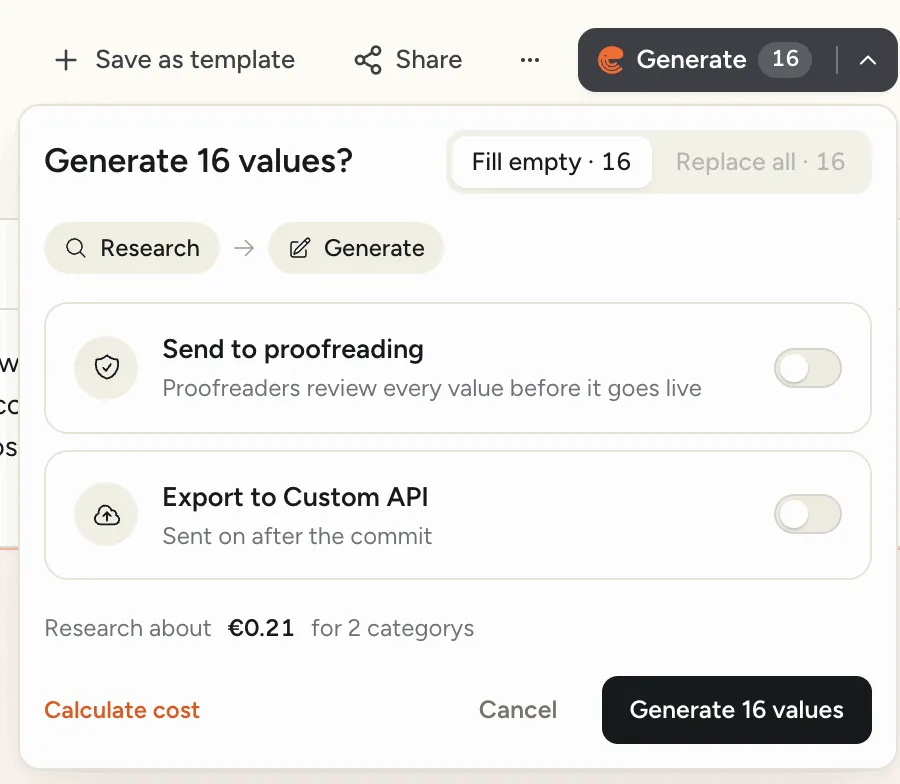
When the first listing reads right, click Generate. The window shows the order, Research and then Generate: Etals first researches the listings that aren’t researched yet, then writes them. It also shows an estimate of the research cost. Turn on Send to proofreading if someone should check the texts first. Click Generate with the number of values, for example Generate 16 values.
When it’s done, the texts are committed to your categories and the grid shows Finished. From there they can go to your shop: export them, or send them to a connected platform.
If you write a value before the research for its listing has finished, Etals asks “Start without research?”. Those values are written without the keywords.
If you send texts on to a connected platform or to your own API endpoint, the Generate window also has an Export to switch with its name, and Finish task offers Also export to. The texts are then sent on after they’re committed. See Export.
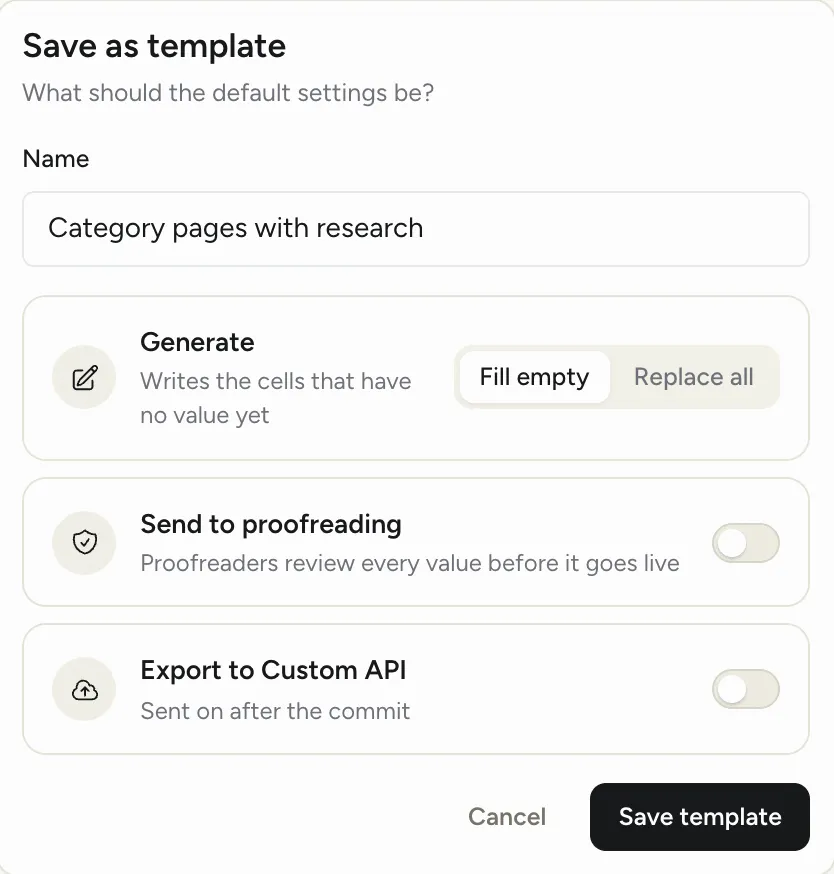
Click Save as template at the top of the grid. Give it a name, choose Fill empty or Replace all, decide on Send to proofreading and click Save template. The template keeps the properties, the languages and the research column.
Next time, open Produce Content and click the template under Templates. The grid opens with everything in place and asks “Which categories is this grid for?”.
Or let an automation do it
In Setup > Onboarding > Categories, click Turn on next to Turn on an automation. Etals opens the automation builder with a suggestion filled in.
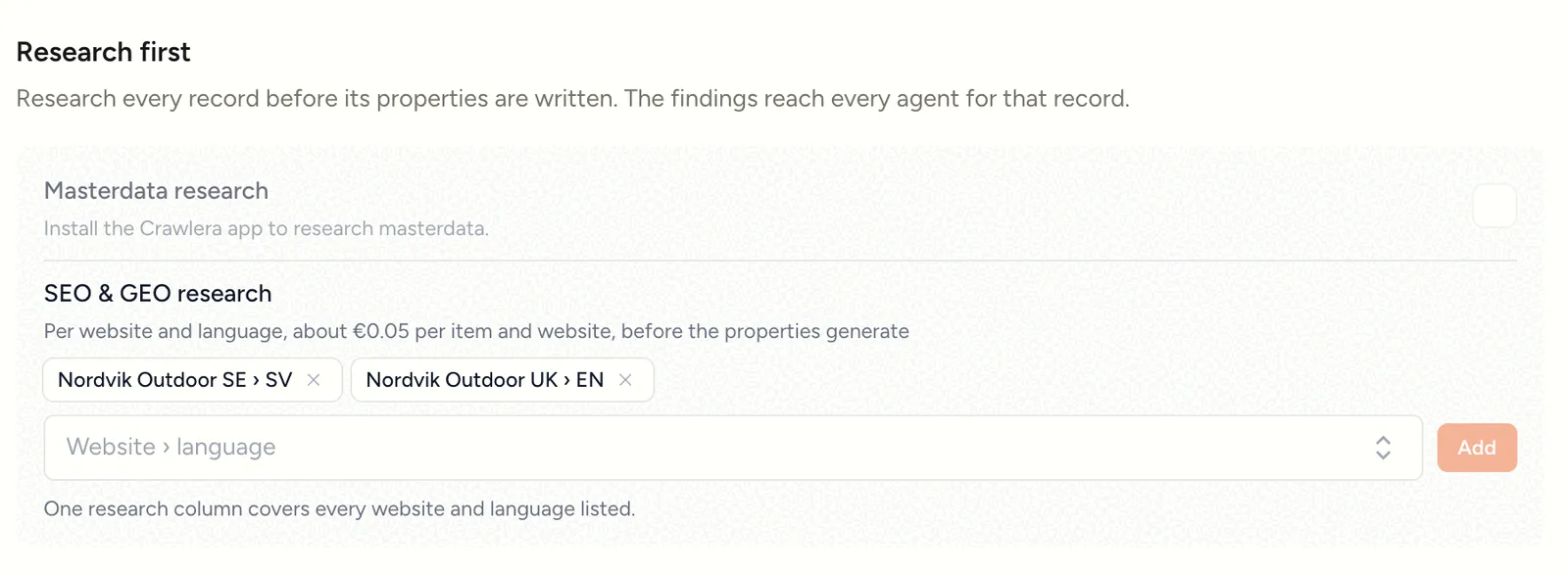
Under Research first, pick a website under Website › language and click Add. Repeat for every web shop. Every run then researches the listings before it writes.
Under What Etals produces, check the texts and the languages or websites they’re written in. The Produces summary on the right lists them too. Click Turn on automation.
You can also pick your template under Start from a template at the top of the builder.
What you get
For every listing and every market, an intro, a body text, a meta title and a meta description written around the words people search for there. This is what Nordvik got for Jackets:
Shop jackets built for rain, wind and cold. Explore waterproof jackets, fleece jackets and insulated layers designed to keep you warm on the trail.
Nordvik Outdoor SE
Jackor, skaljackor och fleecejackor | Nordvik Outdoor
Upptäck jackor för nordiskt klimat. Hitta skaljackor, fleecejackor och vindjackor som håller dig varm och torr. Välj rätt jacka för din nästa tur här.
The English intro now opens with “Jackets for trail walks, rainy commutes and cold cabin weekends.” Before, the page only had “Shells, fleeces and insulated jackets for rain, wind and cold days.”
The body text answers the questions shoppers ask before they buy, such as “Why is the inside of my rain jacket wet?”. A page that answers a question clearly is also easier for AI assistants to quote and link to.
On top of the texts you keep:
research notes in the Body text instructions, so every run writes from what people search for and ask;
the keywords for each listing, saved on the category, so the next run and other pages know which searches it owns;
a template that sets up the next grid in one click;
an automation that researches and writes new listings as they arrive.