
My data
Some rules only make sense for one field. A meta title has to stay short. A description can tell a story. Field instructions are where those rules go. You write them once per property and content type, and every agent that writes that property reads them.
Go to Setup > Prompts and open the My Data tab: “Instructions for each field in your data. Every agent reads them when it writes that field.”
Pick a content type
Use the picker at the top to choose a content type, for example Products. It shows how many fields already have instructions, such as “2 of 3 fields with instructions”.
Below it is the list of Properties. Each row shows the property name, the start of its instructions (or “No instructions yet”), the number of sections, and a Copywriting or Translations pill when the field has sections for that kind of work.
Which fields show up
Only properties that Etals is allowed to write appear here. That’s the Etals can generate setting on the property.
In Nordvik’s Products, Etals updates Description, Meta title and Meta description, so those three are listed. Colour, Material and Supplier Notes are data Etals reads but never writes, so they don’t need instructions and aren’t listed.
If a content type shows “This content type has no fields agents can write yet.”, turn on Etals can generate for the properties you want written. You do that in the Properties step when you set up the content type in Setup > Onboarding, or in the Etals can generate column under My Data > Properties & prompts. See Properties.
Write instructions for a field
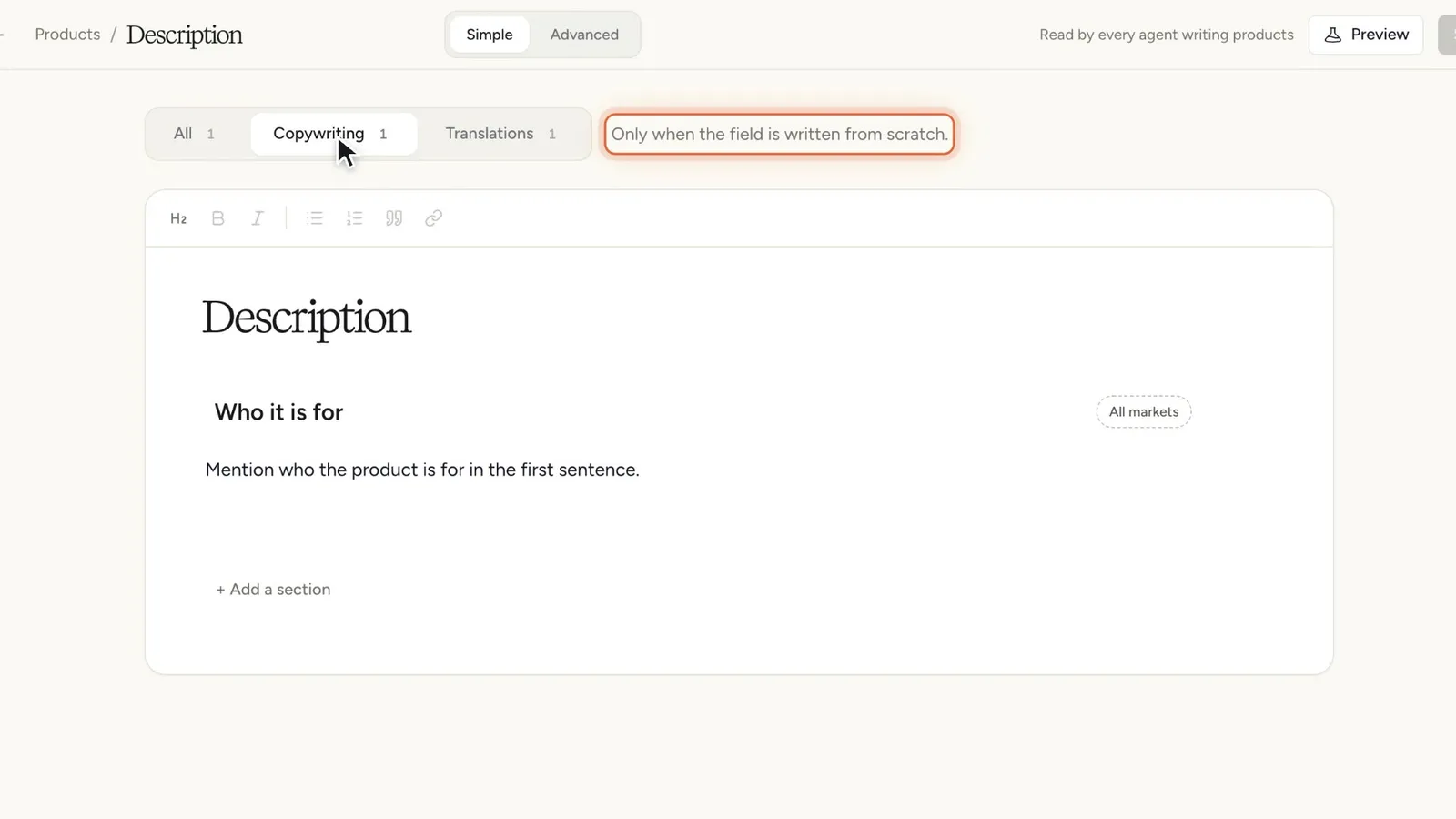
Click a property to open it. The editor says what it’s for, for example “How agents write Description for Products.”, and who reads it: “Read by every agent writing products”.
It’s the same editor as for skills: sections with titles, the toolbar, conditions, Simple and Advanced modes, Preview and Save. One thing is different. Instead of a description, a field has a switch with three scopes.
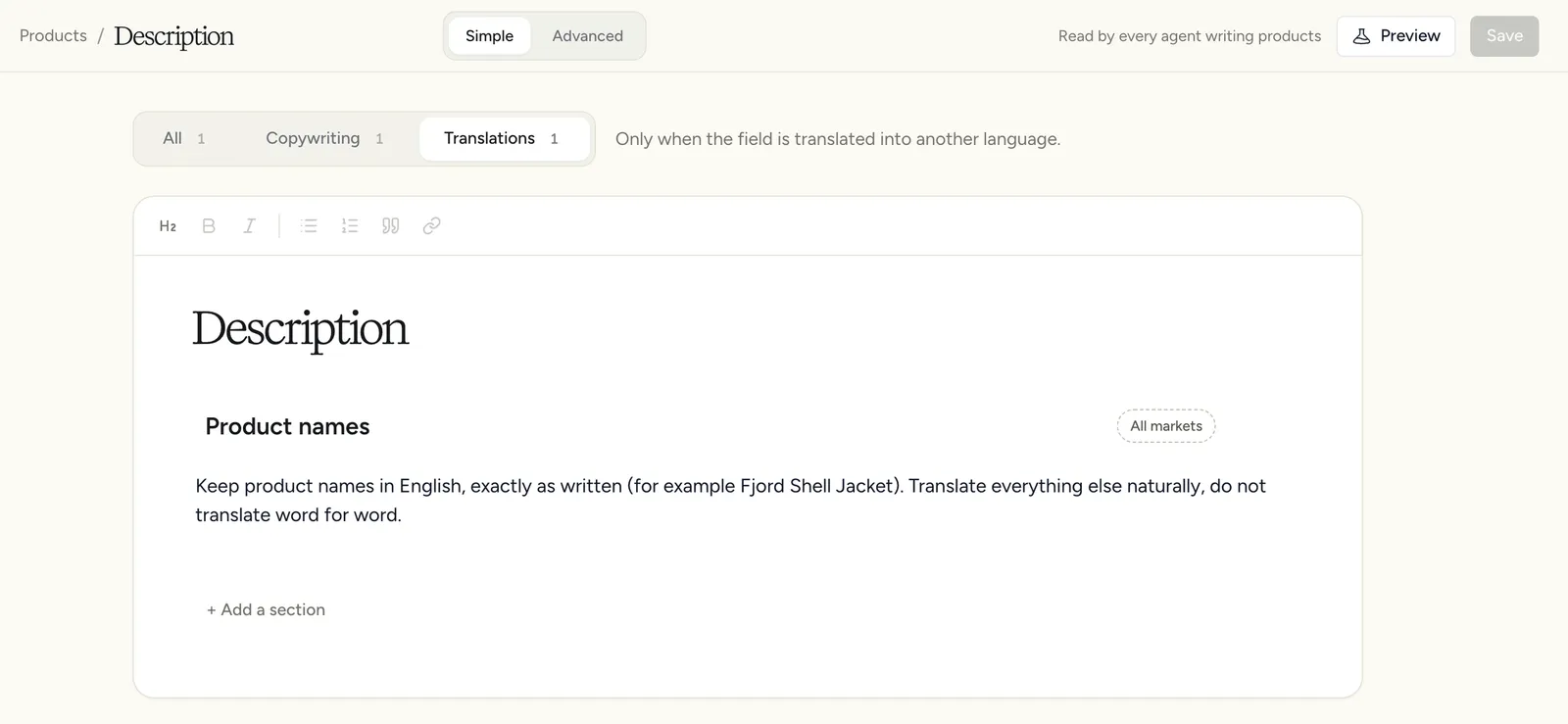
All, Copywriting and Translations
Writing a description from scratch and translating one are different jobs. The scope switch lets you give each job its own rules.
The editor shows one scope at a time. Click a scope to see and add its sections, and + Add a section adds a section to the scope you’re looking at. Each option shows a count when it has sections. To move a section to another scope, hover it and use Move to.
Inside any scope, a section can still have a condition. A Meta title section that only applies on the German site, for example, can say “When Market is Germany”. Sections without a condition show Always under All, and All markets under Copywriting and Translations.
How agents get these instructions
You don’t attach field instructions to an agent. When any agent writes or translates a property, Etals adds that property’s instructions to the agent’s instructions on its own. The agent writing Meta title gets the Meta title rules, not the Description rules.
The scope decides which sections go along. When Etals translates a Swedish description into German, the agent gets the All and Translations sections, and the Copywriting sections stay out.
When you train a property in Setup > Onboarding, what you teach Etals ends up in these same instructions.
Other ways to open the editor
The same instructions open from two other places:
- My Data > (your content type) > Properties & prompts. The Prompt column shows the start of each property’s instructions, or Write prompt if there are none yet. Click it to open the editor. The row menu has Write prompt or Edit prompt too.
- New property. When you create a property, the Prompt field (“what should Etals write?”) lets you type its first instructions straight away. Click Open full editor for sections and scopes. You can change it later in Properties & prompts.
Whichever way you open it, you’re editing the same thing, so a change in one place shows up in all three.