
Skills
A skill is a set of instructions that isn’t tied to one field. It’s how you teach agents things like your brand voice, how to talk about materials, or which claims your legal team allows. Write it once, and every agent it’s attached to follows it.
Good skills for Nordvik Outdoor would be:
- Brand guidelines: how Nordvik sounds. Calm, practical, a bit dry. Short sentences, no hype. Etals writes this one for you when you train your voice in Setup > Onboarding.
- Materials and care: how to describe merino wool, recycled down and membrane fabrics, and which care advice goes with each.
- Sustainability claims: which words are allowed (“made with recycled polyester”) and which aren’t (“eco-friendly”, “climate neutral”).
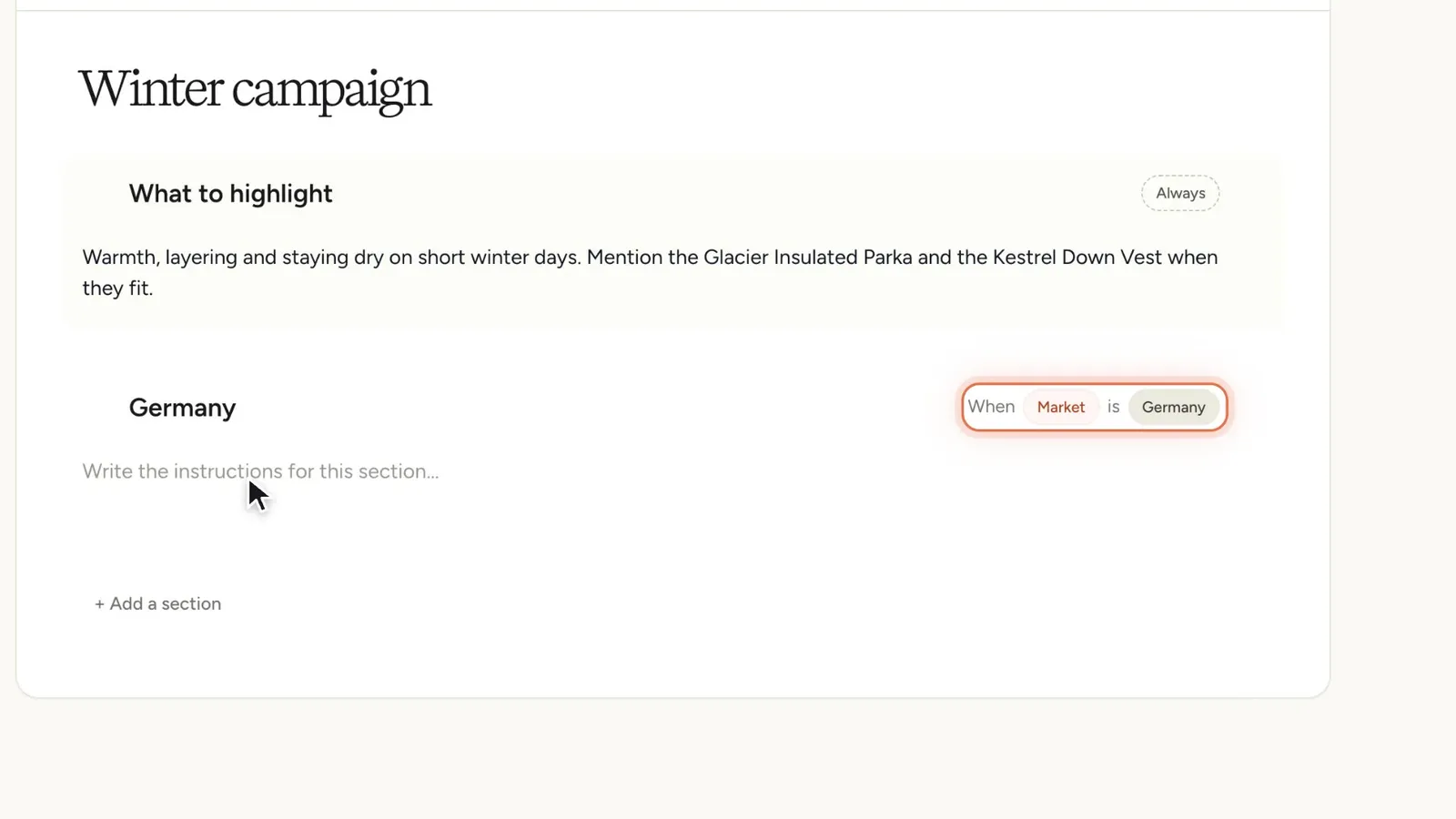
- Winter campaign: what to put first in product copy during the winter season, such as warmth and layering.
Skills live in Setup > Prompts on the Skills tab, grouped by category.
Create a skill
Write a skill
The editor opens in Simple mode.
At the top is a description: “What is this skill for? Shown in the list, not to agents.” Use it to tell your team what the skill covers. It also helps Etals decide which agents need the skill.
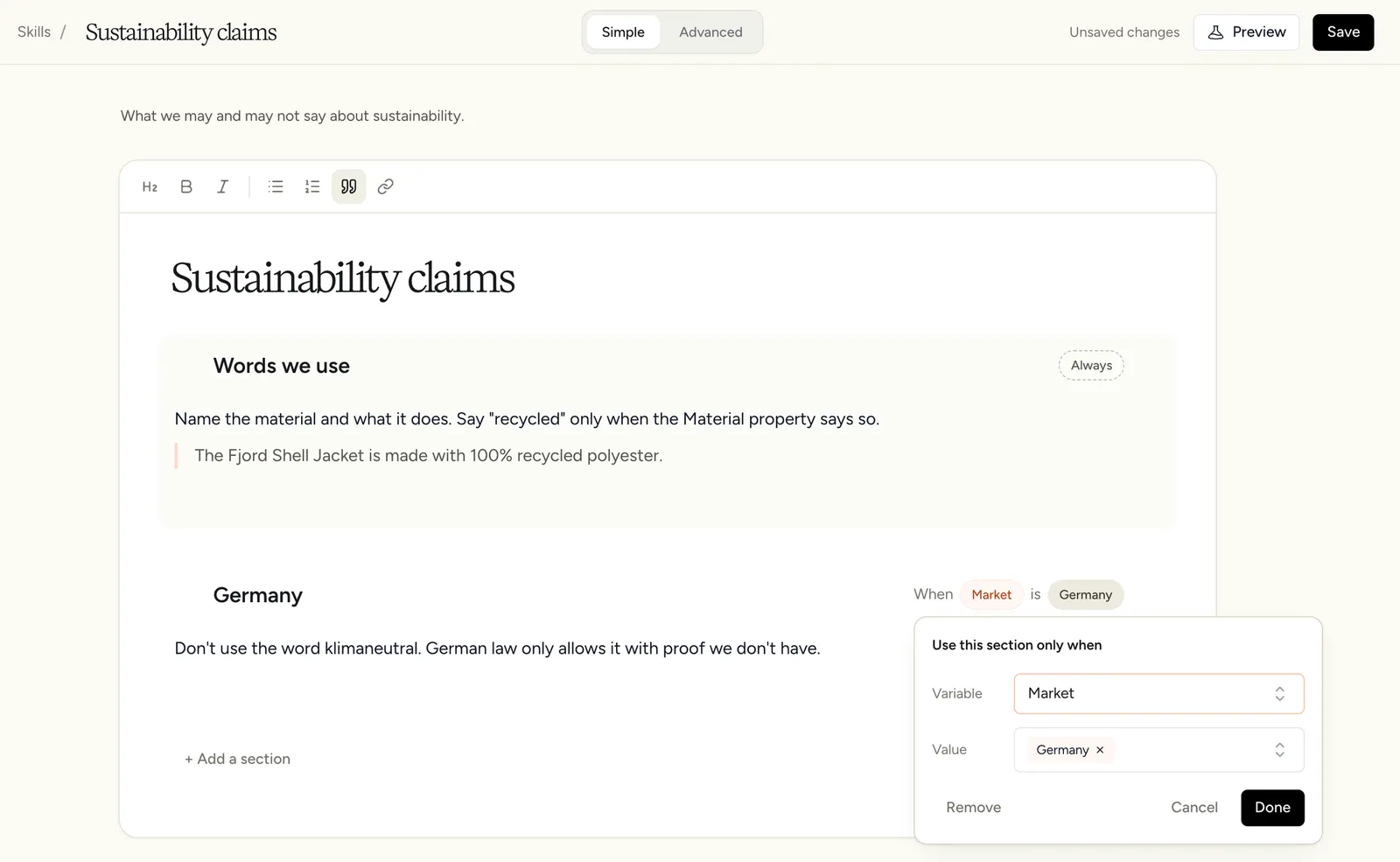
Below it, the skill is a document made of sections. Each section has a title and text. Keep one topic per section, so a Sustainability claims skill might have “Words we use”, “Words we never use” and “Germany”.
The toolbar has Bold, Italic, Bullet list, Numbered list and Example. Use Example to set a sample sentence apart from the rules around it. For example:
The Fjord Shell Jacket is made with 100% recycled polyester.
Click + Add a section to add another. Drag a section by its handle to move it up or down.
Use a section only in some cases
Every section starts as Always. To limit it, click Always and fill in “Use this section only when”:
- Variable: what to check. Choose from Language, Brand, Market, Tags, Content type or Property.
- Value: what it must be, such as Germany.
Click Done. The section now shows “When Market is Germany”, and agents only read it when they write for the German market. That’s the place for a rule like “Don’t use the word klimaneutral”. To make the section apply every time again, open the condition and click Remove.
With Tags as the variable, a section applies only to the grids, columns and canvases that carry that tag, such as a winter sale. See Tags.
If you need something more complex, such as two conditions at once, switch to Advanced. See Prompts for the difference between the two modes.
Save and preview
Nothing saves on its own. The top bar says “Unsaved changes” until you click Save. Click Preview to test the skill against sample data before you rely on it.
Categories
Categories keep the list tidy, for example “Brand”, “Legal” and “Product knowledge”. Click New category at the bottom of the list to add one. Hover a category heading to rename or delete it. You can only delete a category once its skills have been moved or archived.
Which agents use a skill
The right side of each row shows Used by N agents, or Not used yet. The same count is in the editor’s top bar, so you know how many agents a change will reach before you save it.
Agents with Discover skills and audiences automatically turned on get skills attached by Etals. It reads the skill’s name, description and text, and compares them with what each agent does. A Sustainability claims skill fits a copywriter, but not an agent that only sorts products into categories. Etals checks again a short while after you create or change a skill.
You can always attach or remove a skill yourself on the agent, under Setup > Agents > Knowledge. Etals remembers what you did. A skill you remove by hand is never added back, and a skill you add by hand is never taken away. The agent’s Recent decisions list shows what Etals added or left out, and why.
Archived skills
Archived skills aren’t deleted. You can ask the assistant to archive a skill, for example one that duplicates another. Archived skills are listed at /v2/prompts?archived=1 in your workspace. There, Restore brings a skill back and Delete forever removes it for good.